FAQ
Starting in late October 2025, Frito-Lay Cash and COD customers can enroll themselves directly in our eCheck program via Versapay. Sign up should take less than 5 minutes and after customers enroll in Autopay on the Versapay website, customers should be reflected as eCheck within 24 hours (next delivery).
- Make a request to participate in eCheck by clicking the "I want to participate in eCheck!" button on the Home tab. Or you can go directly to https://secure.versapay.com/payables/pepsicous/signup.
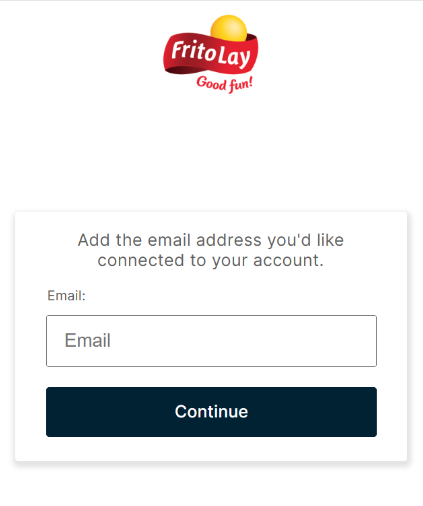
- Enter your email address in the prompt and click Continue:
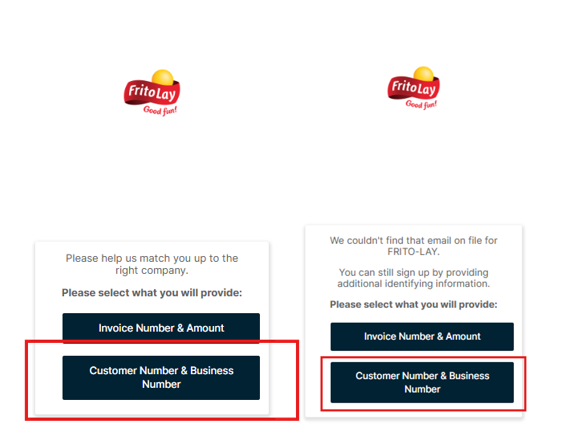
- Whether this is your first eCheck account or you are an existing Versapay owner, select 'Customer Number & Business Number'
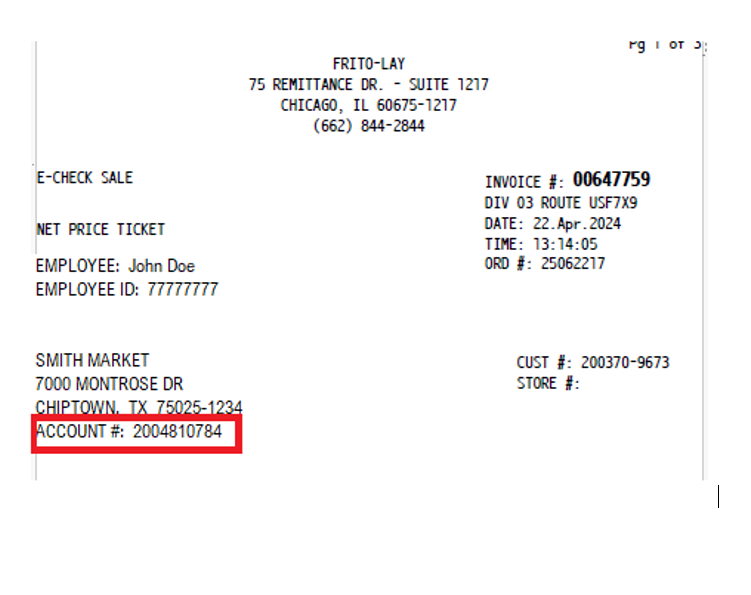
- Invoices will only begin to start populating within Versapay at time of full customer eCheck enrollment (after Autopay is turned on). Therefore, customers will need to sign up for their eCheck account using their Customer Number (beginning with 2xx and found on any sales ticket) and their Business Number being their 5 digit customer zip code.
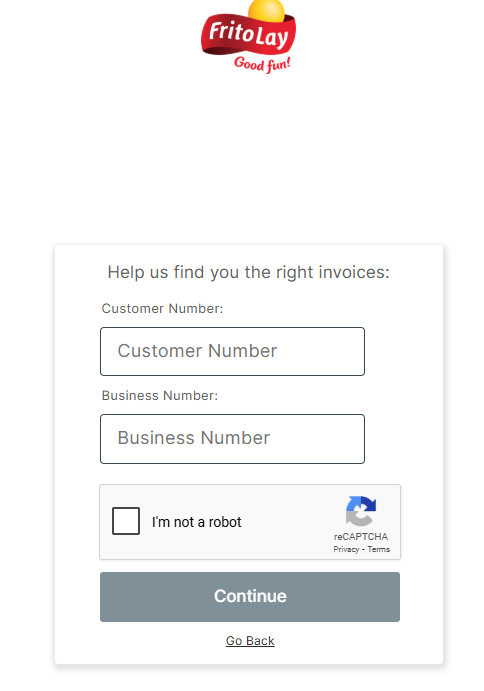
As an example, the below customer would enter 2004810784 as Customer Number and 75025 as their Business Number.
5a. If you are a new customer, you will be prompted to create a password and 2 security questions for account setup. After inputting, you will receive an email from Versapay directly at which point you can confirm your account and agree to the Versapay AR Terms & Conditions. Proceed to step 6.
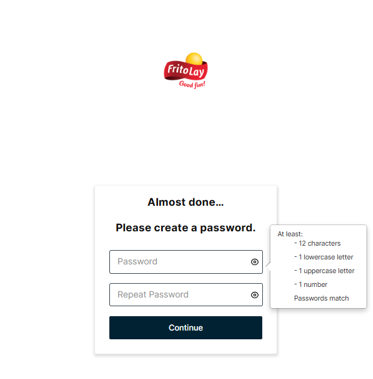
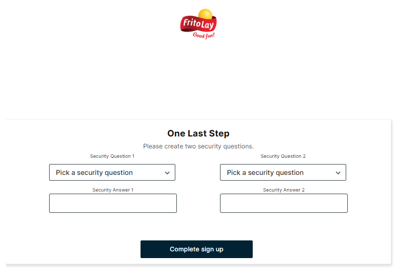
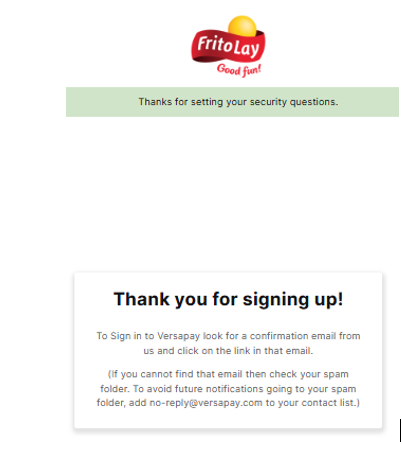
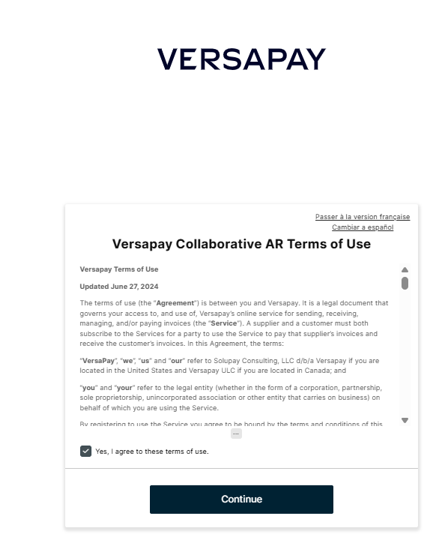
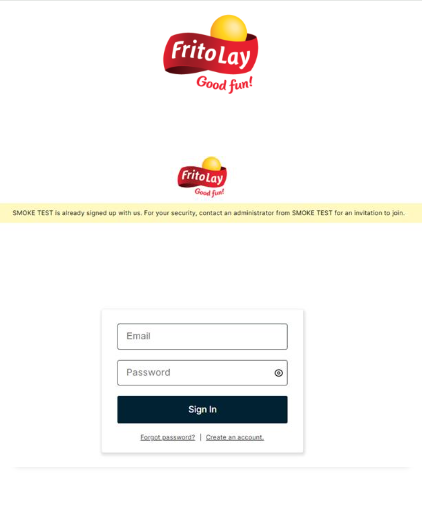
5b. If you are an existing customer, you will receive the following prompt to sign in to your existing Versapay account:
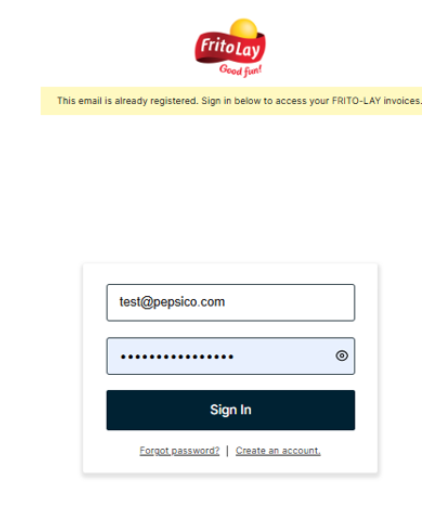
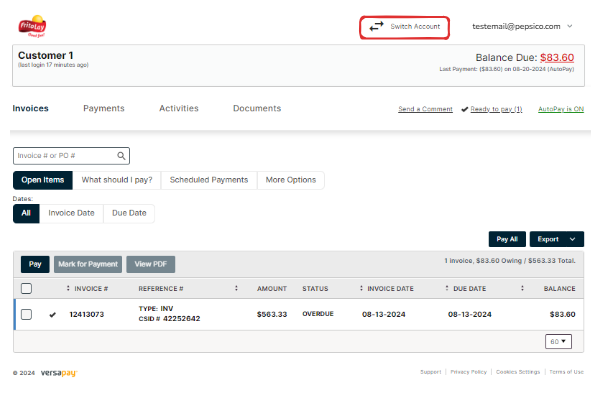
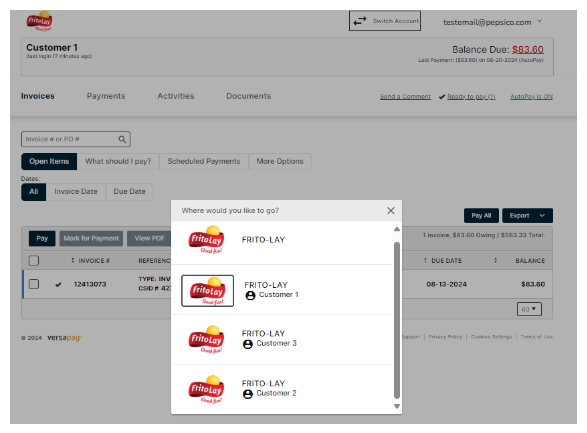
- After logging in, it will take you directly to your customer page and then you can sign up for AutoPay but clicking the direct link. You can also toggle between your customer accounts if you have more than one by selecting 'Switch Account' at the top right.
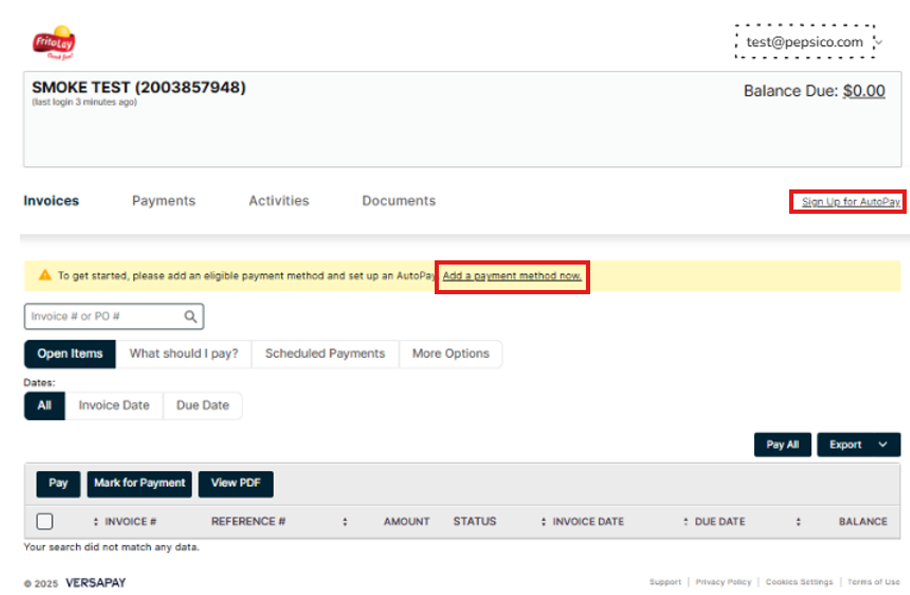
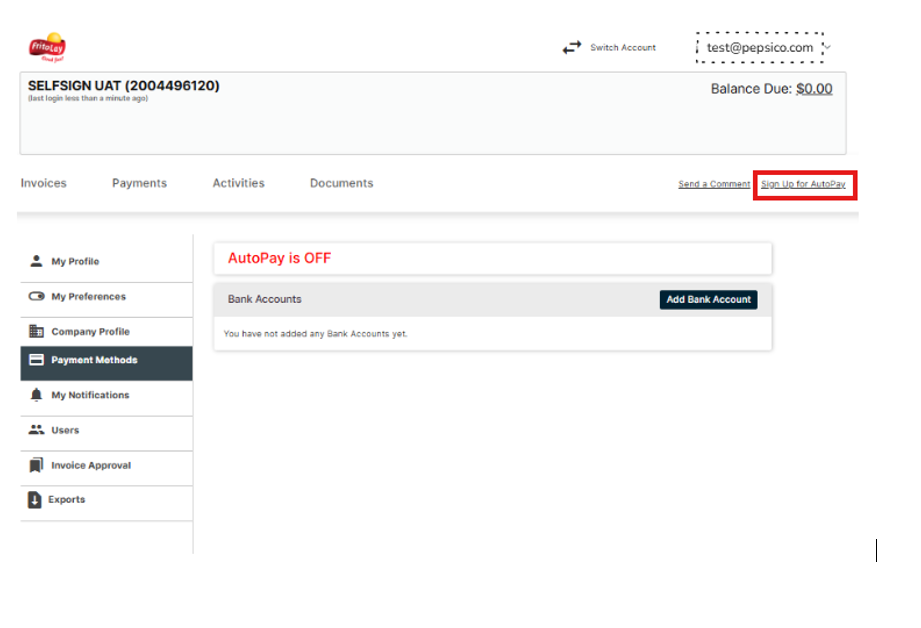
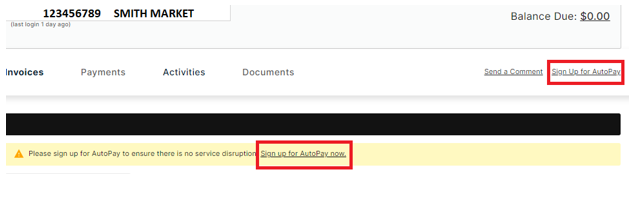
- At this point, you must (1) ADD A BANK ACCOUNT and (2) TURN ON AUTOPAY. First you will need to select the 'Sign Up for Autopay':
- Select “Add Bank Account”
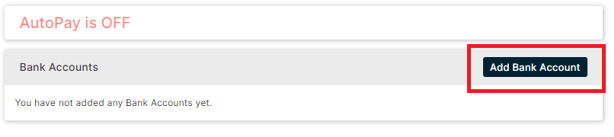
- Add bank account details:
a. Add Routing and Account information
b. Check box to agree to Terms and Conditions
c. Select “Add Bank Account”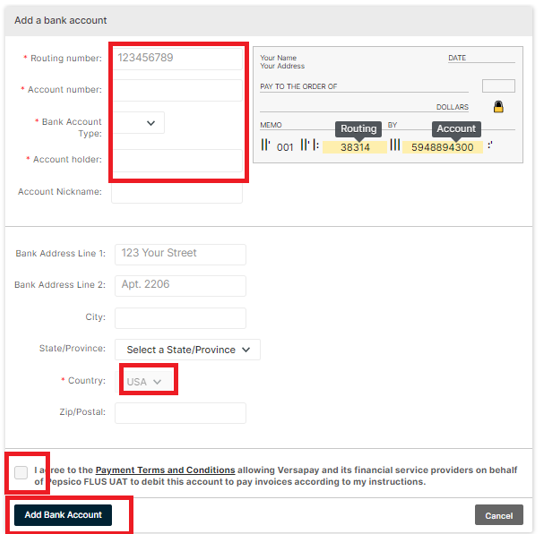
- Once complete, Versapay will then verify the status automatically. Once verified, change AutoPay to ON by selecting “New”.
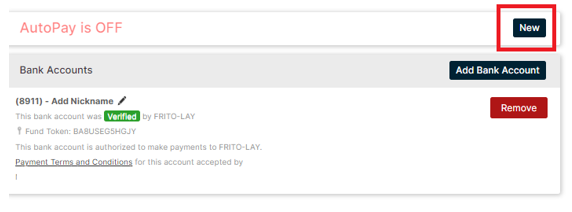
- Finalize AutoPay to ON
a. Select YES for “AutoPay should apply available credits”
b. Check box for approval to automatically debit
c. Select “I Agree”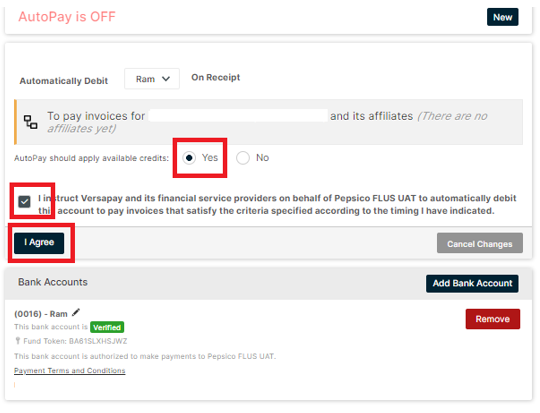
- Confirm that AutoPay is ON
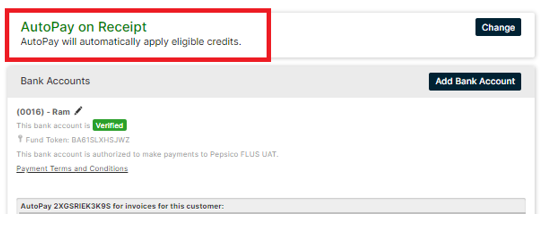
If you are experience difficulty with the above, please select ‘Can't locate your account within Versapay, or need help enrolling? Click here.’ on the Home tab and provide the required information. Within a few days, you will receive an invitation email with details on how to activate your account and log in to Versapay. Once you log in, you must (1) ADD A BANK ACCOUNT and (2) TURN ON AUTOPAY. Refer to steps 7-12 in the above FAQ for more information.
Any customer that undergoes a change in ownership or that receives a new Tax ID due to a reincorporation must be processed as a ‘change in ownership’ and receive a new customer number (beginning with 200x). Please contact your Route Sales representative or our FORCE team to assist in the ending of the old customer account and the creation of a new customer account.
Once you have a new customer account number, within 48 hours you should be able to sign-up following the procedures in the first FAQ at the top. You can also request assistance from your Route Sales representative or via the hyperlinks on the ‘Home’ page of this website.
If you attempt to sign-up with the previous owners’ customer number, you will receive an error notification stating that the existing customer is already signed up and to contact an administrator from that customer. If you receive this message, please contact your Route Sales representative or our FORCE team (forceover.shortcenterofexcellence@pepsico.com) to assist with next steps.
For each store, you will receive a separate Versapay enrollment email that will prompt you to add your bank account and enable Autopay for each account. You may use the same bank account for each individual customer account, or you can add a separate bank account per store. With one email sign-in, you will be able to toggle between your different stores’ accounts to view invoices and payment activity. See below example:
- Go to secure.versapay.com
- Enter your email and password to log in
- If you forgot your password, select “Forgot password?” and follow the instructions
- If your email cannot be found, contact us at FLNAePay@pepsico.com
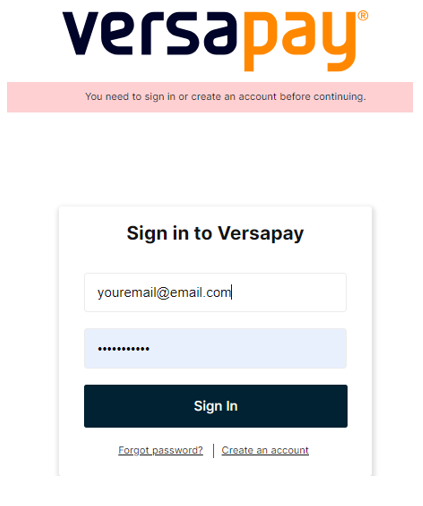
- It may take 2-3 days before all systems sync to change you to an eCheck customer in the Sales Representative’s handheld device
- However, if a longer time has passed, please email us at FLNAePay@pepsico.com or call us at 1-888-73FRITO. Please have a copy of your sales ticket available when you call.
You must first ADD the new bank account. Once the new bank account is added, you can switch the AutoPay to it. Then you can remove the old account (if you prefer).
- Select “AutoPay is ON”. You can also select Payment Methods from the top right dropdown box.

- Select Add Bank Account.
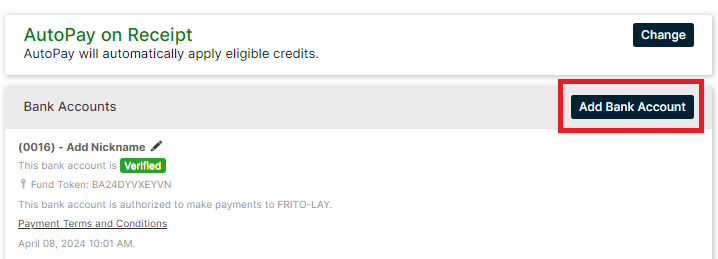
- Input new bank account details and agree to payment terms and conditions.
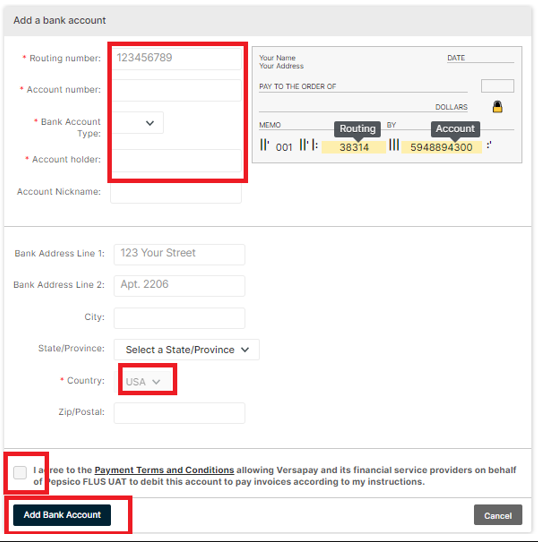
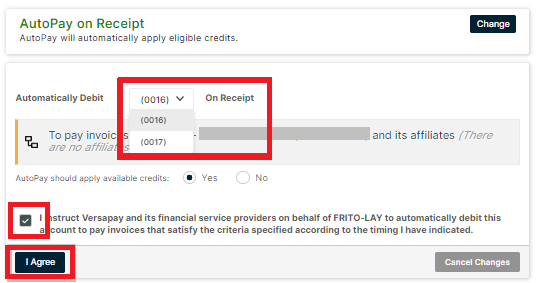
- After the new account has been added, change the AutoPay to use the new account.
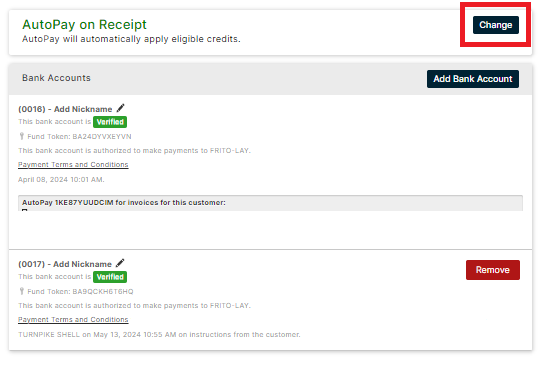
- Select the new bank account from the drop-down and agree to the terms and conditions to activate it for AutoPay. Unless you do this step, the previous account will continue to be debited.
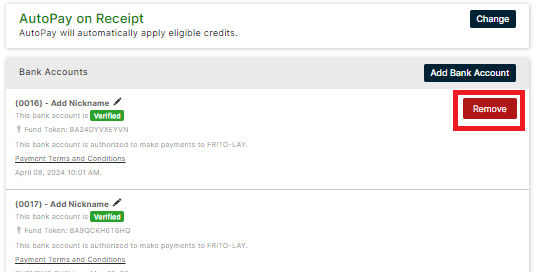
- If you prefer, you can REMOVE the old bank account
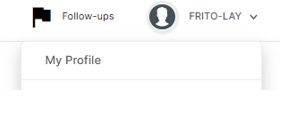
- Select "My Profile"
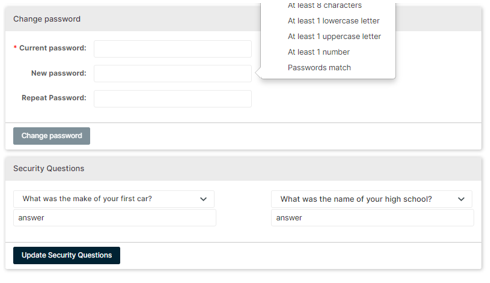
- Update password
If your account has multiple returned payments due to insufficient funds or other ACH reasons (NSFs), you may be unenrolled automatically from eCheck. New with Versapay, customers now have the ability to make payments directly to Frito-Lay using their AutoPay bank account or other means. There is also functionality to schedule payments in advance for outstanding balances. Please see the below for steps:
- Log in to your account at secure.versapay.com and select the Invoices tab. From there you will see all open invoice items that indicate status as ‘OVERDUE’. You can select any individual invoice to pay, or all on the lefthand side.
- After selecting, click ‘Pay’.
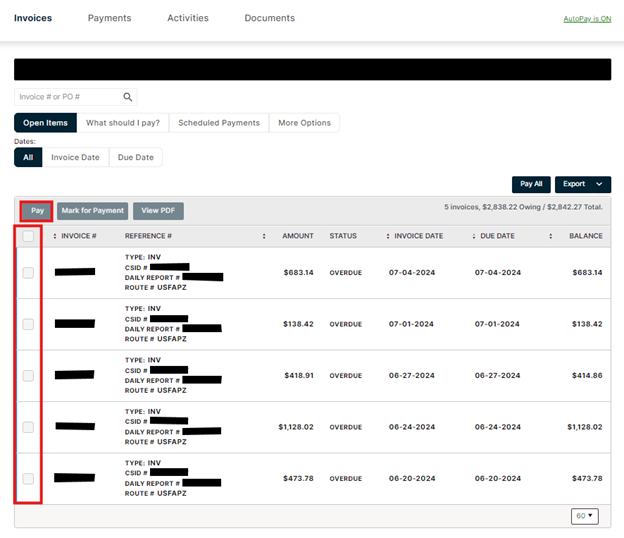
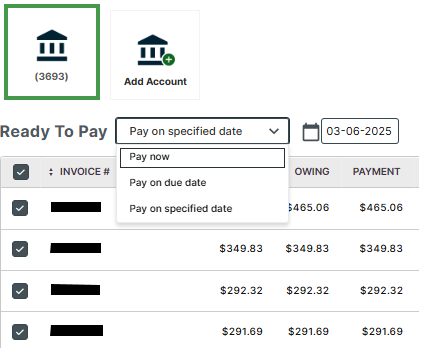
- Next screen will show the invoices you selected as ‘Ready to pay’ for review. Your AutoPay bank account will be selected by default though you can add a separate account by clicking ‘Add Account’. Here you have the default option to ‘Pay now’. If prefer to spread out your payments over a few days or weeks, you can proceed on scheduling these by selecting ‘Pay on specified date’ and selecting the date. Once ready to pay, click ‘Continue’.
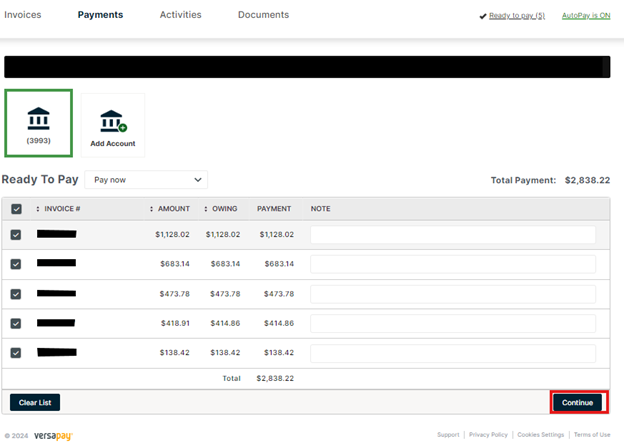
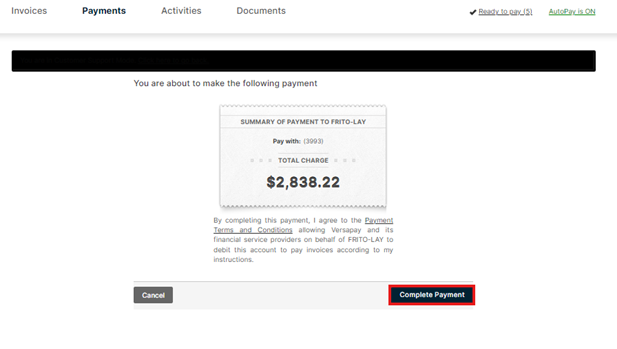
- Final step is another review with the sum of total payment and link to the Terms and Conditions that is agreed upon completing payment. Click ‘Complete Payment’ and invoices will be cleared and paid for.
Send an email to FLNAePay@pepsico.com, or call 1-888-73FRITO and have your Account # from your sales ticket available
- Go to the Home tab on fritolay-epay.com
- Select the “Please unenroll me from eCheck!” button and complete the required information
You will need to unenroll from eCheck. Follow the steps below to unenroll:
- Go to the Home tab on fritolay-epay.com
- Select the "Please unenroll me from eCheck!" button and complete the required information
- eCheck (direct debit) is an accepted method of electronic payment available to all of our Frito Lay customers that have payment due upon delivery. Payment is processed via an Automated Clearing House (ACH) transaction from your designated checking and/or savings account.
- Once successfully enrolled in the eCheck payment option, each of your future Frito Lay sales ticket invoices will be automatically processed for electronic payment (within 1-3 days) of each Frito Lay delivery.
- The Frito Lay eCheck payment system is facilitated via a best in class and highly secure web portal, managed by Versapay. Any information that you provide on the website will be provided directly to Versapay and subject to the Versapay Terms and Conditions, Website Terms of Use and Privacy Policy.
The amount of each eCheck ACH transaction is based on the amount due per the Frito Lay sales ticket generated at the time of product delivery from your Route Sales Representative. The total amount due per the sales ticket will equal the total funds directly debited (net of any available credits) to your eCheck account within 1 to 3 business days of the sales ticket transaction date.
- All of your eCheck related transaction activity history can also be viewed on the Versapay website by logging in and viewing your customer account.
- Available credits will be netted against invoices sent for payment.
- A secure option for the way business is done today.
- Bank account information not shared with anyone other than you.
- Easy and convenient with 24/7 Online Account Access.
- More efficient than paper checks/money orders.
- Payment happens without account holder being present at time of delivery.
- All Frito-Lay “Cash” customers (as indicated on your Frito-Lay sales ticket)
- All Frito-Lay “COD” customers (as indicated on your Frito-Lay sales ticket) with no outstanding balances on their account
Any direct questions you may have regarding eligibility status can be confirmed by emailing us at FLNAePay@pepsico.com or by calling our customer service line at 1-888-73FRITO
Only you will have access to your banking information through Versapay’s secure website. No one else will have access to this information.
- The eCheck payment system is available to you as long as you are a valid Frito-Lay customer and you have not sent us notification to unenroll through the “I want to unentroll from eCheck” button on the Home tab of www.fritolay-epay.com
- However, if your account has multiple returns (NSFs), you may be unenrolled automatically by our team, reverting you back to being a Cash/COD customer that must present payment to your Sales Representative
- Please note that if your business experiences an ownership change, including termination of service, you will need to unenroll by contacting us with the “I want to unenroll from eCheck” button on the Home tab of fritolay-epay.com